Movie Loft
Your Apple TV library, with a channel guide.
A note on who did what. Movie Loft was built with Claude Code, Anthropic’s AI coding tool, and Claude did the heavy lifting. It wrote essentially all of the code: the AppleScript export, the data cleanup, the channel scheduler, the web server, and the software that drives the Apple TVs. It also drafted this page. My part was the idea, the decisions (what to build, which channels, how Tune in should behave), testing everything on real TVs, and the stories that are mine to tell. When this page says “I,” that’s me; most of the building was Claude.
You own hundreds of movies and thousands of TV episodes in the Apple TV app, and every night you scroll past all of them looking for something to watch. Movie Loft turns that library back into something you browse the way you used to browse a video store, and into something you can just turn on the way you used to turn on cable.
It’s named after the Movie Loft, the video store where I worked all through high school.
Why it had to be built
The idea already existed, just not for this library
There are apps that do the channel-guide trick beautifully. Coax, by indie developer Carter Fort, is the one that got me started. I found it through fellow Brandeis alum Lex Friedman’s Lex on Tech, in his spotlight "Carter Fort built Coax so your local library is always 'on'." Point Coax at a Plex, Jellyfin, or Emby server and it scans your library and builds a lineup of channels you can flip through. That’s exactly what I wanted, but my library isn’t on a Plex server. It’s hundreds of movies and thousands of episodes bought over the years in iTunes and then the Apple TV app.
You can’t get an Apple library into Plex, at least not legally
Most of what you “buy” in the Apple TV app is a license to stream it from Apple’s servers. Even the titles you can download come wrapped in Apple’s FairPlay copy protection, which only Apple’s own apps will play. To Plex, Jellyfin, and Emby, they’re unplayable files.
The workaround people use is software that strips the copy protection off. In the US, that breaks the anti-circumvention rules in the DMCA, even for movies you paid for. Ripping your own DVDs and Blu-rays runs into the same rule, since those are copy-protected too. Plenty of people do it anyway. I didn’t want a project built on that, and I wasn’t going to re-buy a library I already own.
Apple doesn’t make it easy to even look at your library
With the video off the table, the next question was whether I could at least get the list. Apple doesn’t make that simple either:
- There’s no API for your personal Apple TV library.
- The library file is encrypted, so you can’t just read it off the disk.
- Apple’s public search API no longer returns movies, which closed off the usual way of looking titles up.
- The Apple TV app has no “Copy Link,” so even getting a shareable link to one of your own movies takes detective work.
The trick: move the remote, not the movie
What finally cracked it was a change of approach: don’t move the video at all. Leave every movie and episode exactly where it is, on Apple’s servers, playing in Apple’s own app on Apple’s own hardware, the way it always has. Movie Loft just reads the list and then works the remote:
- It reads the catalog the one way Apple still allows: by asking the Apple TV app directly, with AppleScript, on a Mac.
- It builds the guide from that list.
- When you tune in, it tells your Apple TV to open the title and jump to the right minute, the same as if you’d picked it yourself and scrubbed ahead.
Nothing gets copied, cracked, or moved. Apple’s protection stays intact, because Movie Loft never touches the video.
The parts that took the longest
- The TV data is a mess. Buy a complete series and every episode can land in “season 0,” with the real numbers buried in the titles, and trailers and featurettes filed between episodes as if they were episodes. Untangling thousands of raw rows into clean seasons took a whole set of rules, and a test suite of every weird case to keep them honest.
- Apple TVs are fussy about being told what to do. Jumping to a minute sounds simple. In practice, the Apple TV drops a jump sent too early, reports the wrong position while a video is playing, and gets stuck half-paused if you pause it while it’s still loading. The working sequence was found by trial and error, with someone standing at the TV calling out what was on screen.
- Finding Apple’s own ID for every episode meant reading the same behind-the-scenes episode list Apple’s website uses, then matching titles carefully. Apple numbers some shows differently than the Apple TV app does (a two-part pilot can shift a whole season by one).
- No opening holes in the home network. My phone is managed by my employer, so a VPN back home wasn’t an option. Instead, a small helper on the Mac checks in with the Movie Loft server and picks up Tune in requests. It only ever calls out; nothing at home accepts connections from the internet.
What it does
Your whole library, on one page
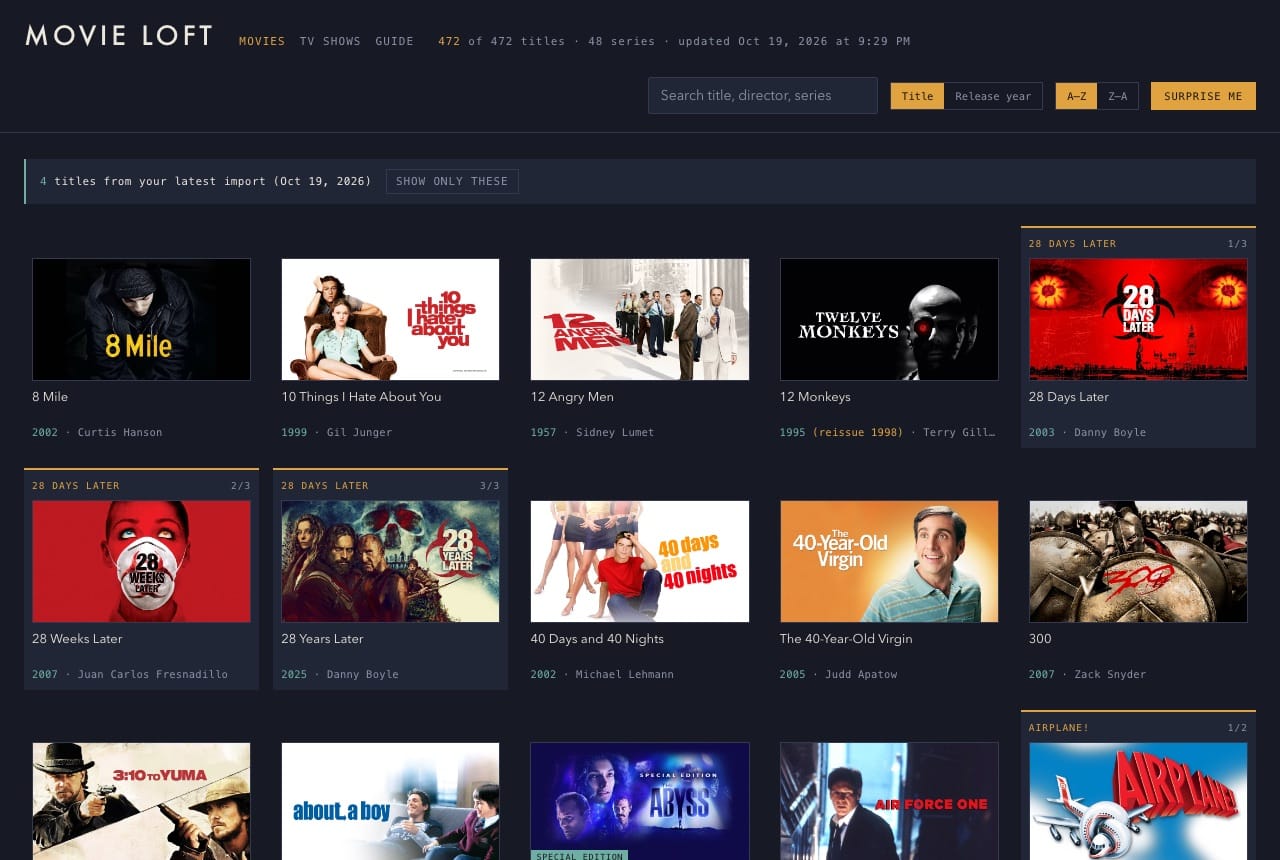
- Every movie you own, as a wall of covers you can scroll, sort by title or by year, and search.
- Franchises stay together. Mission: Impossible, Alien, the Avengers, and Bond each sit in one row in release order, even the entries whose titles don’t say which series they belong to (Prometheus, Logan).
- The real year. The Apple TV app dates movies by when the digital version came out, so Goodfellas shows up as 2015. Movie Loft shows the theatrical year and notes the reissue: 1990 (reissue 2015).
- “Surprise me” picks a random movie when you can’t decide.
- What’s new gets its own banner, so recent purchases don’t get lost in the pile.
TV shows, cleaned up
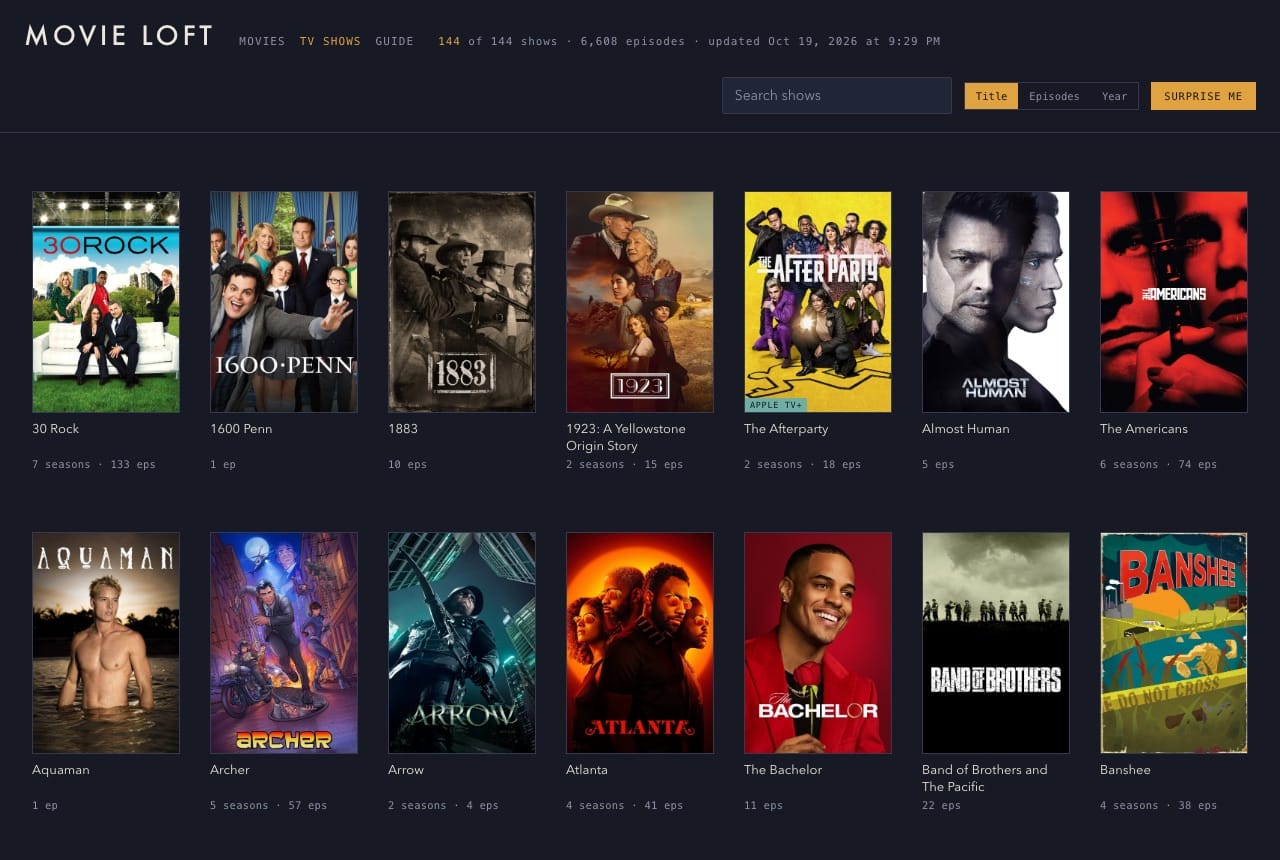
The Apple TV app’s TV data is a mess. Complete-series purchases hide the real season and episode numbers inside the titles. Trailers and featurettes sit in the middle of seasons, numbered as if they were episodes. Seasons you bought twice show up twice. Movie Loft sorts all of that out, so every show is just its seasons and episodes, in order, with a proper poster.
Comfort picks
Tap ♥ on the movies and shows you’d put on any night: the ones you’ve seen twenty times and will see twenty more. Filter down to just those when you want something easy. They also get their own channels in the guide.
The Guide
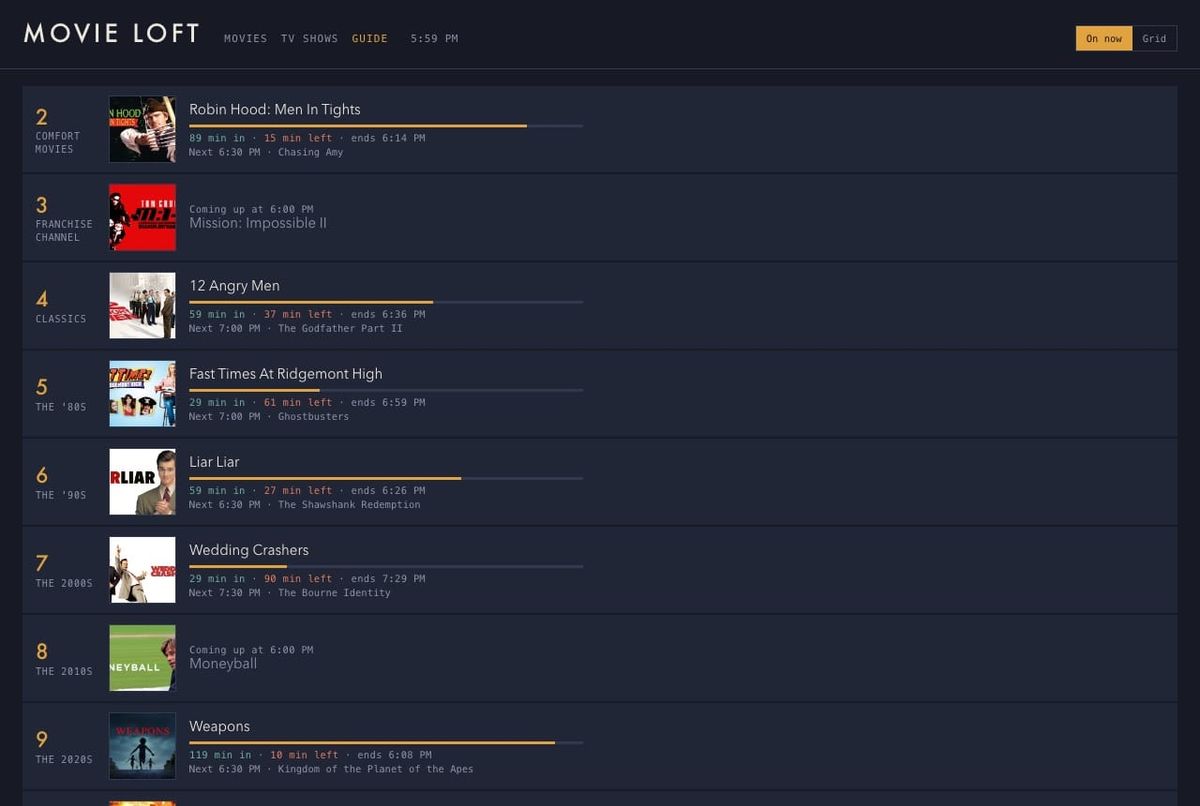
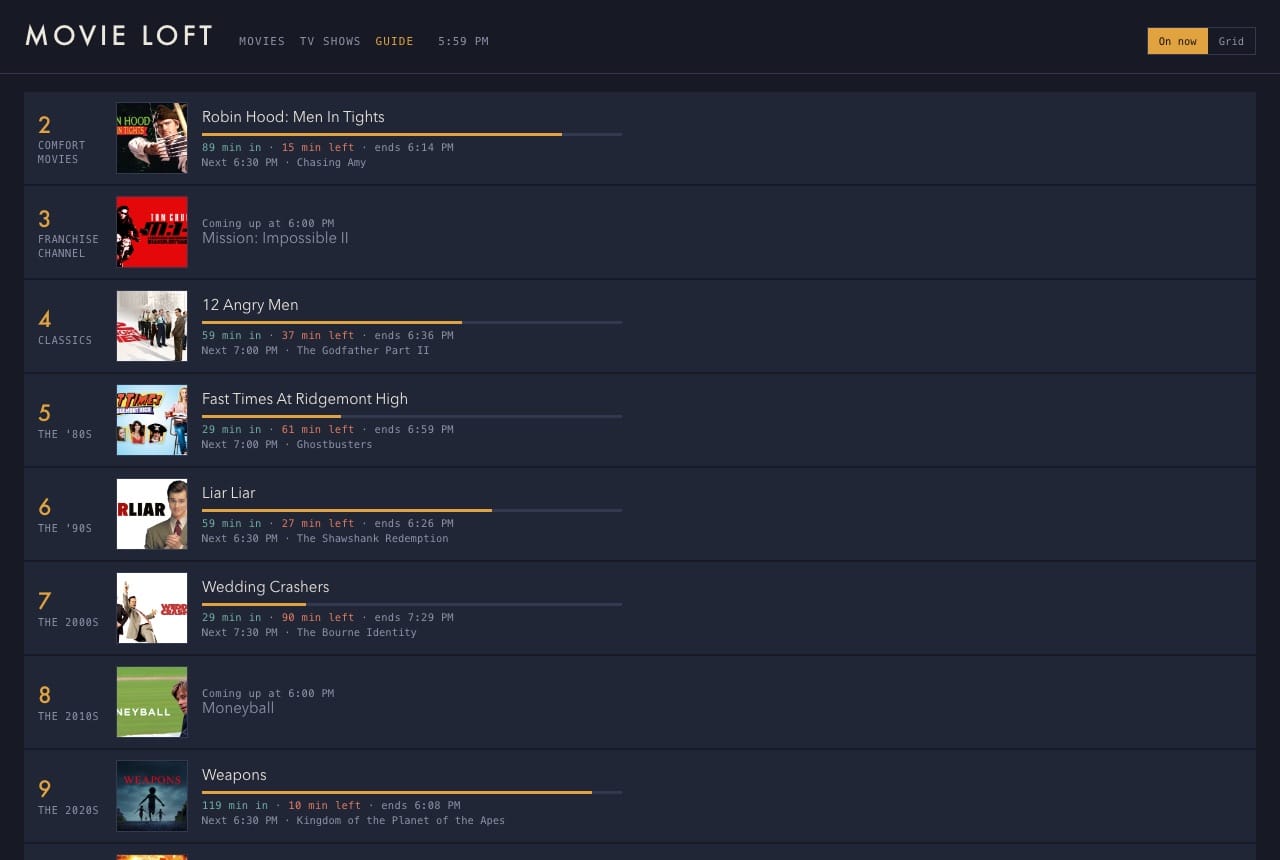
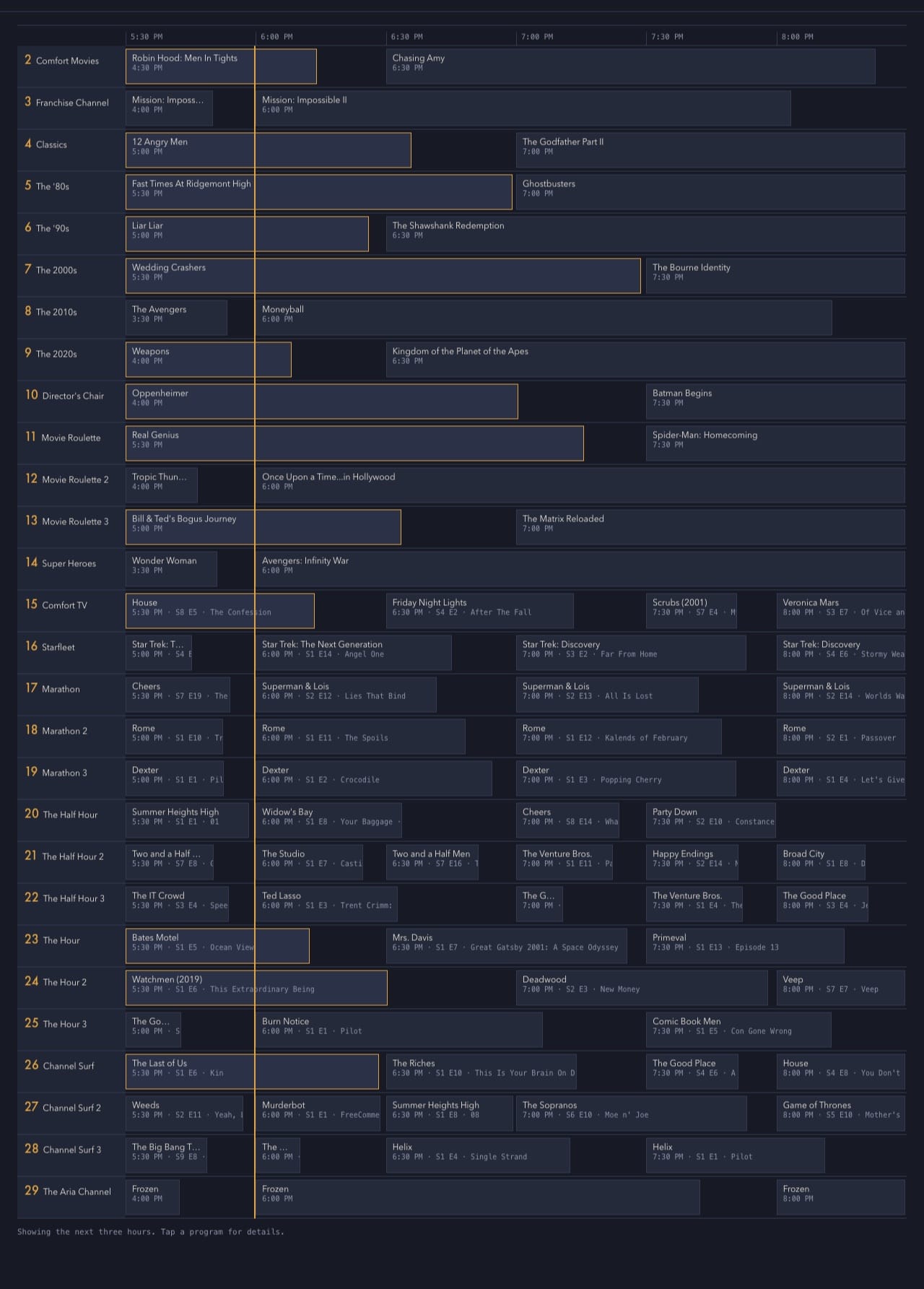
This is the part that’s hard to explain until you see it. Movie Loft runs a cable-style channel lineup made entirely from your own library, a full broadcast day, every day. Mine has 28 channels, because I run three copies of the busiest formats, the way cable had HBO, HBO2, and HBO3; out of the box it’s around 18.
- Real channels with a point of view: The Franchise Channel (whole series, in order), decade channels, Director’s Chair, Super Heroes, Starfleet, The Half Hour, The Hour, Marathon (several episodes of one show back to back), Movie Roulette, Channel Surf, Comfort Movies, Comfort TV… and The Aria Channel, which plays Frozen. Only Frozen. Forever. (More on that below. Yours can loop whatever you like.)
- It behaves like TV. Channels start at 2, like the cable box you grew up with. Programs start on the hour and half hour. The day runs from 6 AM to 6 AM. When a channel runs out of things that fit before 6 AM, it signs off with a test pattern.
- The same lineup on every screen. It isn’t random: each day’s schedule is worked out from the channel and the date. Your phone, your laptop, and your partner’s iPad all show the same thing on Channel 7 at 9:30 tonight.
- No reruns colliding. A movie or show is never on two channels at once.
- On Now shows what’s playing right now on every channel, how far in it is, and how many minutes are left. Grid is the classic TV-guide timetable.
The Aria Channel
Like plenty of couples who have dogs but not kids, April and I have head canon about our dogs’ personalities: years of inside jokes, endlessly entertaining to exactly two people.
The first time Aria saw snow, she burrowed straight into it, and April declared, “So she’s a snow dog.” From there the head canon… snowballed (sorry). Aria loves Frozen. Aria always wants to build a snowman. Aria has a stuffed Olaf. Aria tells her brother, “Go away, Franklin.” Aria is the Princess of Arendelle. And whenever I ask April if she wants to watch a movie, Aria always chimes in: she wants to watch Frozen.
So when I was telling April about Movie Loft, she said, “You should have a channel called The Aria Channel that just plays Frozen on a loop.”
Now there is. It’s channel 29.
Tune in
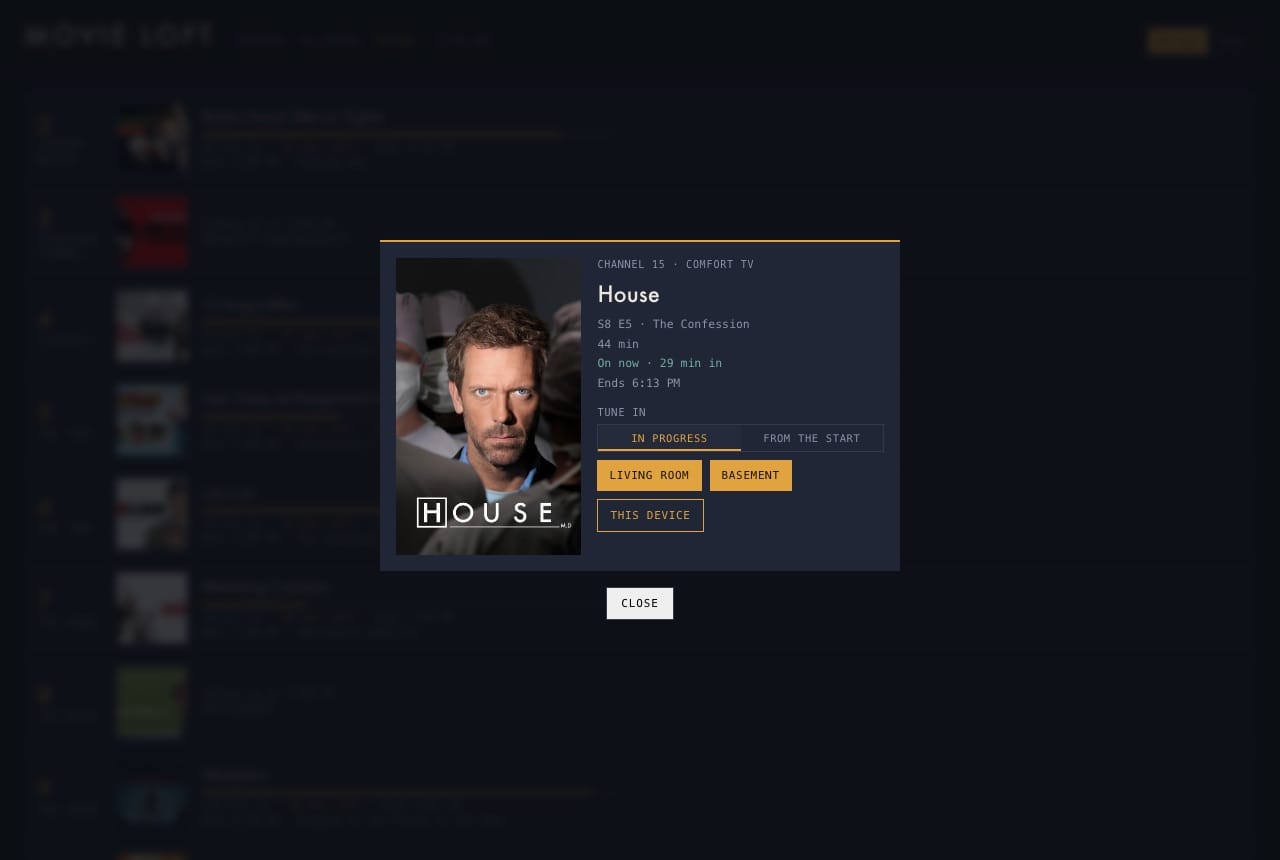
See something in the guide you want to watch? Tap it, then tap a room.
- Your Apple TV turns on, opens that movie or episode, and jumps to where the “broadcast” is right now, then waits paused for you to press Play. You walk in partway through, just like real TV, except you can pause.
- Or start from the beginning with one toggle.
- Exact episodes, too: tune into Seinfeld, and you get that episode of Seinfeld, at that minute.
- This device opens it in the Apple TV app on your phone, iPad, or Mac instead.
Apple TV+ shows, mixed in
Shows you stream but don’t own, like Ted Lasso, Severance, and Slow Horses, can join the guide alongside your library, marked as Apple TV+.
One command to stay current
Buy something new, run one command, and a few minutes later it’s in your library pages and on the guide’s channels, with its cover, its real year, and its Tune in link.
Private by design
Movie Loft sits behind Google sign-in, open only to the accounts you list. Save it to your phone’s home screen and it opens like an app. Its database holds just two things: the titles you’ve tagged as comfort picks, and a log of Tune in requests. Your library itself lives in your own private GitHub repo.
How it works (the short version)
Apple doesn’t offer a way to read your Apple TV library from outside the Apple TV app, so Movie Loft asks the app itself: an AppleScript reads your library on a Mac and saves it as plain text files. A set of Python scripts cleans that up, looks up posters, real release years, and Apple TV links, and builds the pages. The guide’s schedule is worked out in your browser. A small web server keeps it private and passes Tune in requests to a helper on your Mac, which controls your Apple TVs over your home network. Nothing at home is exposed to the internet: the helper only ever calls out.
What you need
- A Mac with the Apple TV app, signed in to the account that owns your library. It runs the update and the Tune in helper.
- One or more Apple TVs for Tune in (optional; the pages and guide work without one).
- A free TMDB account, for posters and release years.
- For the hosted, private version: a host that runs Docker and Postgres, and a Google Cloud OAuth client for sign-in. I use Railway, on the Pro Workspace plan I already have for this and other projects; Movie Loft on its own should fit a lower-priced plan, and other hosts work too.
Honest limitations
- Apple-only, and US-store-shaped. It reads the Apple TV app and drives Apple TVs. Links and lookups assume the US storefront.
- Built on things Apple doesn’t promise to keep. The Apple TV app’s scripting support, the episode list on Apple’s website, and Apple TV remote control all work today and could change without notice. When one breaks, the rest keeps working (Tune in falls back to opening the show’s page, for example), but something will need fixing.
- Tune in needs a Mac that stays on, on the same network as your Apple TVs.
- It’s a personal project. It started as one library in one house. It’s been generalized so anyone can run it, but expect some setup and the occasional rough edge.
Try it yourself
The code is on GitHub: jnassi/movie-loft, MIT-licensed. The README walks through setup in levels, from library pages on your Mac to the full guide with Tune in, and you can stop at any level. If you try it, I’d love to hear how it goes.
This product uses the TMDB API but is not endorsed or certified by TMDB.